Products & online shops
Show which device an app setting controls
A split view can connect a thermostat or home-energy setting with the room and device it actually affects.
Capri Video · Updated · 1 min read
Example: an assembly manual brought to life
See how a printed manual becomes a sequence customers can follow. Our example shows the Duke Fitness XB30 assembly with counted parts and numbered steps.
A setting in an app can feel abstract until you see which device it affects. Put the screen beside a simple room illustration and follow one confirmed smart-home function. Keep the example tied to the supported product and setup.
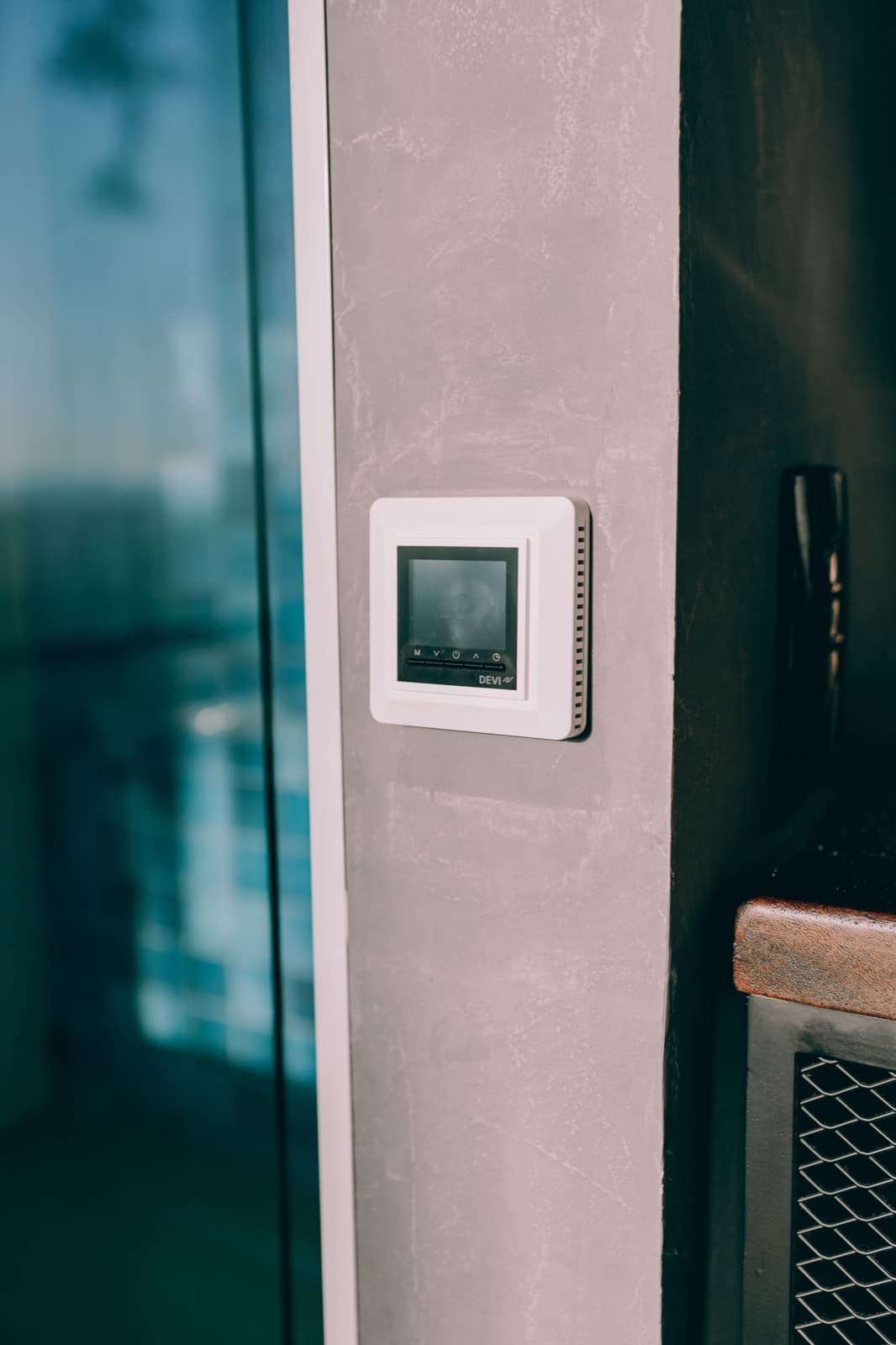
Put the screen beside the room
Use a split view with the approved app screen and a simple room illustration. Match labels across both views so the affected device stays clear. Distinguish saving a setting from receiving an actual device status. Avoid adding animated savings or whole-home effects that the feature demonstration does not establish.
Start with the right product documents
Gather current documentation, compatibility information and demo screens for the setting you're explaining.
Record the model and documentation version, and check close-ups against the real product. Have the product specialist review the scenes before animation.

Help people find the right explanation
Place it near the feature or help entry. Ask which room and device the setting affects. If a viewer assumes it changes everything in the house, tighten the labels and boundaries. Keep the explanation tied to that supported connection, without promising the same result for every home or usage pattern.